
TroubleShooting
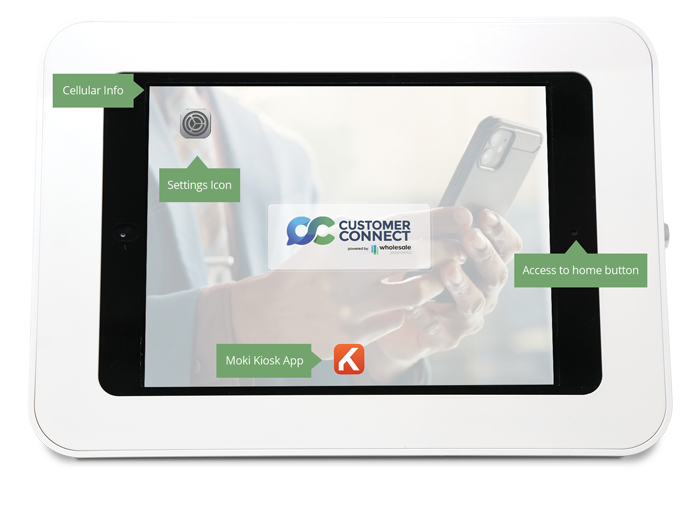
Black Screen
A black screen typically indicates one of the following conditions: sleep mode, powered off, or dead battery.
Sleep Mode
If the kiosk is in sleep mode, press the Home button to wake the device. A tool tethered to the back of the kiosk is provided to assist with pressing the Home button. Once the screen turns on, press the Home button again to return to the home screen, then launch the Moki Kiosk app located at the bottom of the screen.
Kiosk Powered Off
If the kiosk is powered off, unplug the device and plug it back in. A white Apple logo will appear on the screen. Allow the device to fully power on, then confirm the cellular signal in the corner displays LTE. Once connected, launch the Moki Kiosk app.
Dead Battery
If a low battery image appears when pressing the Home button, or if the screen remains black after unplugging and plugging the device back in, the battery may be depleted. Ensure the kiosk is securely plugged in and allow the device time to charge, then try powering it on again.
- Always use the charging equipment provided. We supply specific chargers designed to keep the kiosk charged at 100% while running the app 24/7. Standard chargers, including Apple chargers, are not sufficient and will cause the device to lose charge and shut down if the provided charger is not used.
- Never plug the USB cable into a computer. The USB port does not provide sufficient power to properly charge or maintain the kiosk. Always use a wall charging block with the provided charging equipment.
White Screen
A white screen indicates a connectivity issue. This usually occurs if the app was launched before the kiosk established a signal or if the kiosk lost signal while the app was running.
- Use the tethered tool to press the Home button.
- From the Customer Connect home screen, verify the signal in the corner shows LTE.
- There is no need to connect to Wi-Fi unless the cellular signal is weak.
- If both the cellular signal and Wi-Fi are displayed, go to Settings and turn Wi-Fi off.
- Double-click the Home button and swipe up to close the Moki app.
- Tap the screen to return the Customer Connect home screen to full size, then relaunch the Moki Kiosk app.
App Crash
If the Moki Kiosk app crashes immediately upon launch, please contact Customer Connect for assistance.
Important Information
- Do not disassemble the kiosk unless explicitly instructed by Customer Connect.
- Any unauthorized disassembly is done at your own risk.